If you have followed our WH3 Mod starter guide and subscribed to a few mods, the next step is controlling how they load. This guide covers the tool some players use to organize larger mod lists.
Why Not Just Use the Launcher?
The official launcher lets you tick boxes, but it is weak at:
- Load order — mods that change the same tables need a correct top-to-bottom order, or you get crashes / silent overrides.
- Script mods — many mechanics mods (Mixu's Unlocker, Araby, the Crustacean Nation) rely on script loading that the launcher handles poorly.
- Conflict spotting — the launcher won't tell you two mods edit the same unit.
The Total War Mod Manager fixes all three.
What Is Total War Mod Manager?
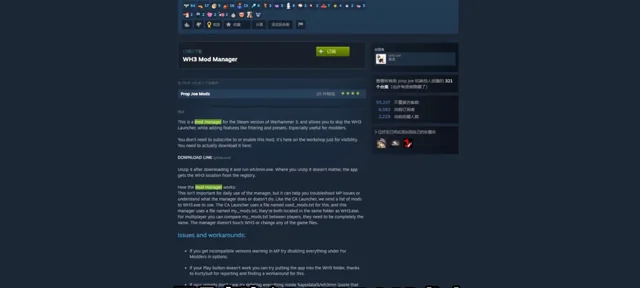
A free, open-source external manager (Windows) that reads your Steam-subscribed mods and lets you:
- Drag-and-drop to set load order.
- See warnings when mods conflict or when a required dependency is missing.
- Launch the game with the exact set you configured.
- Manage save-game compatibility and profiles.
It does not download mods for you — you still subscribe on the Steam Workshop; it just organises and launches them.
The Mod Manager’s main screen and drag-and-drop load order, captured by the user.
To be captured by the user from their own game installation. This space does not contain fabricated or AI-generated gameplay.
How to Set It Up
- Download Total War Mod Manager from its GitHub / Steam page and unzip it.
- Point it at your WH3 install (it usually auto-detects).
- Open the Steam Workshop for Warhammer 3 and subscribe to the mods you want.
- In the manager, tick the mods you want active and drag them into the correct order.
- Rule of thumb for order: framework/utility mods first (e.g. Mixu's Unlocker, Map Replacer Framework), then big overhauls, then small tweaks on top.
- Hit Launch. If the game crashes on start, the manager's conflict warnings usually tell you which mod is the culprit.
Load Order Tips
- Put dependency mods (things other mods require) at the very top.
- Put small balance/tweak mods below the large overhauls they tweak.
- When two mods edit the same unit, the one lower in the list wins — use that deliberately.
- Keep a clean profile with no mods for vanilla comparison.
Verdict
The manager can help organize a mod list, but it cannot guarantee compatibility or prevent every crash. Follow each author’s instructions and test changes separately. Pair it with our Mixu collection guide next.
Tool & credit: Total War Mod Manager by Frodo45127. This is an independent how-to; in-game imagery should be captured by you from your own installation.
Part of the WarhammerGuide WH3 Mod series. Related: Basic QoL mods · Mixu collection.